Uploads#
Uploads let you bundle and manage sets of files that can be attached to Spark jobs and Spark Connect servers at submission time. Common use cases include packaging job dependencies such as JAR files, Python libraries, and configuration files, as well as distributing custom Spark images. Uploads are identified by a name, owner, creation date, and status. Uploads can be managed from the Uploads UI or programmatically with the CLI.
Privileges#
The following privileges control access to uploads. See access control for instructions on granting and revoking these privileges.
CREATE: Upload new files. Access and delete uploads created by this user.MANAGE: Access and delete all existing uploads.
Uploads UI#
Click Uploads in the Dell Data Processing Engine section of the Starburst Enterprise web UI to view and manage your uploads.
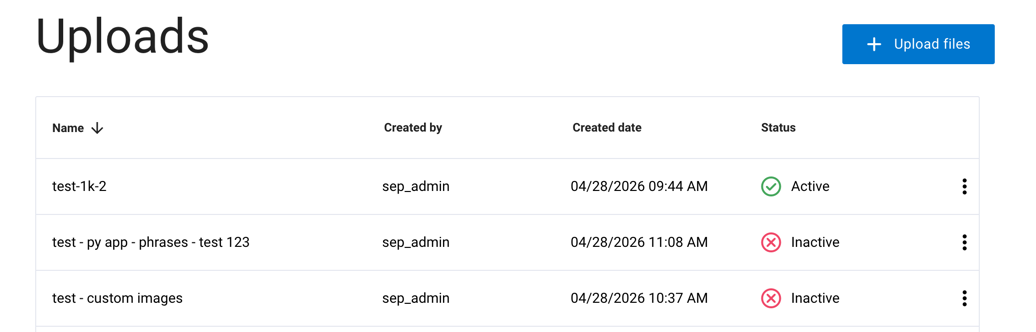
The following columns are displayed:
Name: The name given to the upload.
Created by: The user who created the upload.
Created date: The timestamp for when the upload was created.
Status: The current state of the upload, either Active or Inactive.
Click the options menu for an upload to view its details, change its status, or delete it.
Upload files#
To upload new files:
Click + Upload files.
Enter a name for the upload in the New upload name field.
Drag and drop files or folders into the upload area, or click file(s) or folder(s) to browse and select them.
Click Create upload.
View upload details#
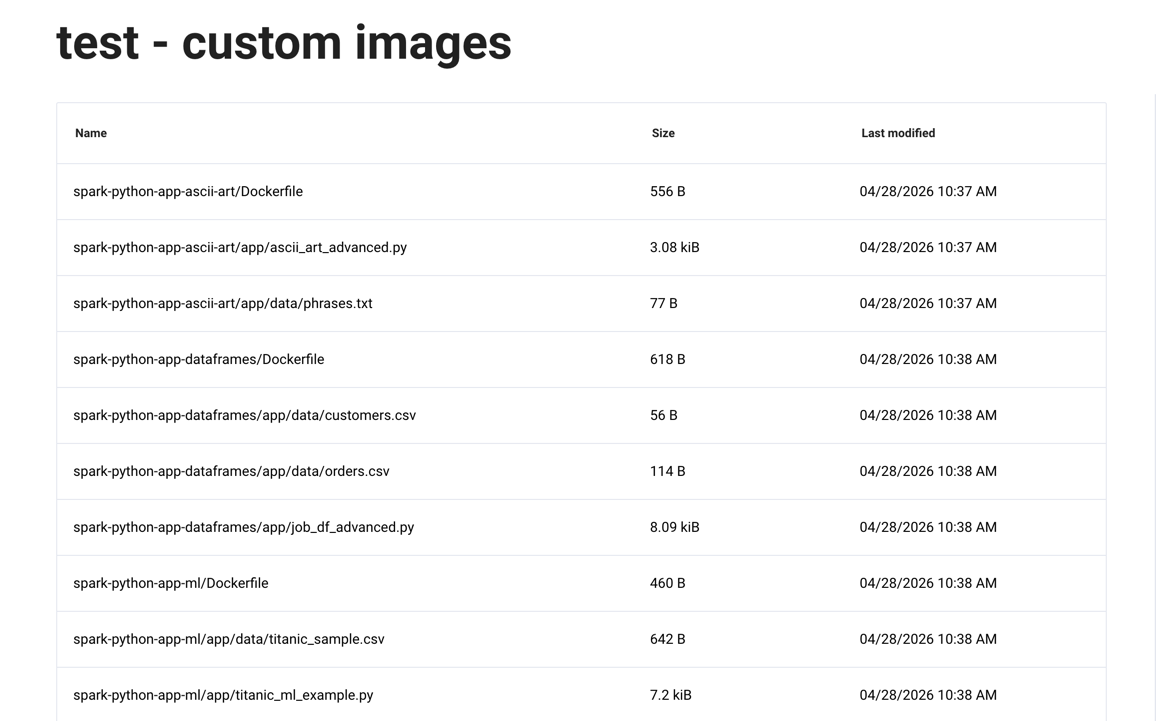
To view details for an upload, open the options menu for the upload and click Details. The details view shows a list of all files in the upload, including each file’s name, size, and last modified timestamp. For example, a custom Spark image upload may contain many individual layer files:
Activate an upload#
To activate an inactive upload, open the options menu for the upload and click Activate. Active uploads can be attached to batch jobs and Spark Connect servers.
Deactivate an upload#
To deactivate an active upload, open the options menu for the upload and click Deactivate.
Delete an upload#
To delete an upload, open the options menu for the upload and click Delete.
In the CLI#
Use the DDPE CLI to manage uploads programmatically. See the uploads CLI commands for all available commands.
List uploads#
To list all of your uploads:
./dell-data-processing-engine uploads list
Upload files#
To upload a set of files under a given name:
./dell-data-processing-engine uploads add -n <upload-name> /path/to/files
Get upload details#
To get the details of a specific upload:
./dell-data-processing-engine uploads info <upload-name>
Activate an upload#
To activate an upload:
./dell-data-processing-engine uploads activate <upload-name>
Deactivate an upload#
To deactivate an upload:
./dell-data-processing-engine uploads deactivate <upload-name>
Delete an upload#
To schedule an upload and its files for deletion:
./dell-data-processing-engine uploads delete <upload-name>
Update an upload#
To change an upload’s name or description:
./dell-data-processing-engine uploads update -n <new-name> -d <description> <upload-name>